Help & guides
Install the app
Add 1000 Words to your phone, tablet or computer so it opens like any other app, full screen, with no app store.
1000 Words Academy is a web app you can install. Installed, it gets its own icon, opens straight to Home, full screen without the browser’s address bar, and starts faster. There’s nothing to download from an app store, and it updates itself.
From Home
When your browser can install the app, Home shows a Get the app card.
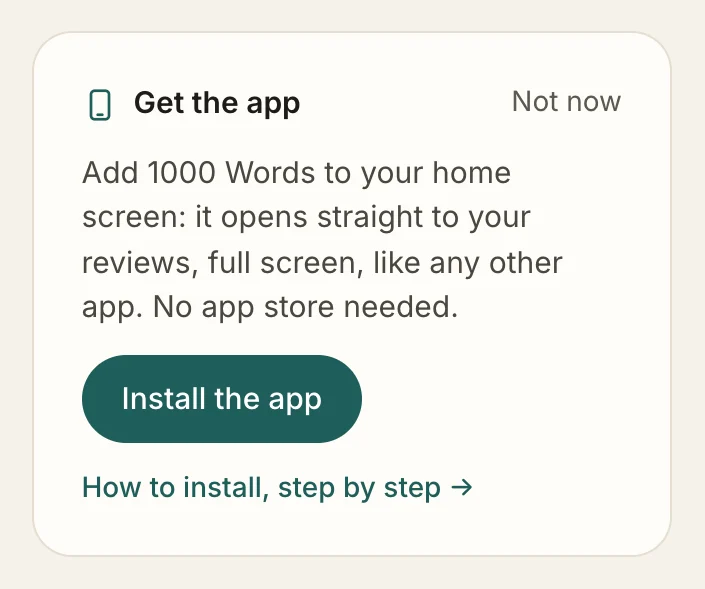
- Install the app opens your browser’s install dialog (Chrome, Edge and Android). On iPhone and iPad, the card shows the two Safari steps instead.
- Not now hides the card for good. You can still install from your browser’s menu, as below.
- These steps, for every device.
iPhone and iPad
- Open 1000wordsacademy.com in Safari and sign in.
- Tap the Share button: the square with an arrow pointing up. On iPhone it’s in the toolbar at the bottom; on iPad, at the top right.
- Scroll down and tap Add to Home Screen. (If you don’t see it, tap Edit Actions at the bottom of the list and add it.)
- Check the name, 1000 Words, and tap Add.
The icon appears on your home screen. Open the app from there from now on.
Android
- Open 1000wordsacademy.com in Chrome and sign in.
- Tap Install the app on the Get the app card, or open Chrome’s menu (⋮, top right) and tap Install app (on some phones, Add to Home screen).
- Tap Install.
Samsung Internet, Edge and Firefox can install it too, from their own menus.
Windows, Mac, Linux and Chromebook
Chrome or Edge:
- Open 1000wordsacademy.com and sign in.
- Click Install the app on Home, or click the install icon at the right end of the address bar (a small screen with a down arrow).
- Click Install.
The app opens in its own window, and you’ll find it in your Start menu, Applications folder or launcher like any other app.
Safari on a Mac (macOS Sonoma or later): choose File → Add to Dock, then Add.
Firefox on a computer can’t install web apps. Bookmark the site instead, or use Chrome, Edge or Safari for the app.
What works offline
Your progress is saved on our server, so the app needs a connection to study. If your connection drops in the middle of a session, keep going: your answers are held and sent as soon as you’re back online.
The public library pages you’ve read recently (word lists, verb tables, grammar guides and these help pages) are kept on your device, so you can read them offline.
Remove the app
- iPhone and iPad: touch and hold the icon, then tap Remove App, then Delete from Home Screen.
- Android: touch and hold the icon, then tap Uninstall (or drag it to Uninstall).
- Chrome or Edge on a computer: open the app, click the ⋮ menu at the top of its window, and choose Uninstall 1000 Words Academy.
- Safari on a Mac: remove it from the Dock, and delete it from your Applications folder.
Removing the app never deletes your account or progress: sign in on the website and everything is there.