Help & guides
Getting started
Make an account, choose your language and learn your first 20 words, in about five minutes.
1000 Words Academy teaches the 1,000 Italian or Spanish words you’ll hear most, in the order you’ll hear them. You learn them in batches of 20, practice each word in its different forms, and the app brings every word back just before you’d forget it.
Create your account
- On the home page, choose Start Italian or Start Spanish.
- Enter your email address. We’ll send you a short code: type it in to confirm the address. There’s no password to remember, ever.
- Choose a username. It can use lowercase letters, numbers, - and _, and needs 4 to 32 characters.
Your first batch
A new account opens on Home with a map of your 1,000 words, every tile still new, and your first batch waiting.

- Start your first batch: 20 words, about five minutes.
- The language you’re studying. Tap it to switch between Italian and Spanish.
A session asks for each word in turn. Type it, or tap it in the word bank under the card. Getting a word wrong is fine: you’ll see the answer, and the word comes back later. A study session walks through every part of the card.
Then come back tomorrow
The next day, Home shows Today’s review: the day’s share of the words that are due. Reviews are short and they’re what makes the words stick, so do them first, then learn new words when you have time. Daily reviews explains how the app picks them.
Switch languages
Italian and Spanish are both included, on one plan. Your progress is kept separately for each.
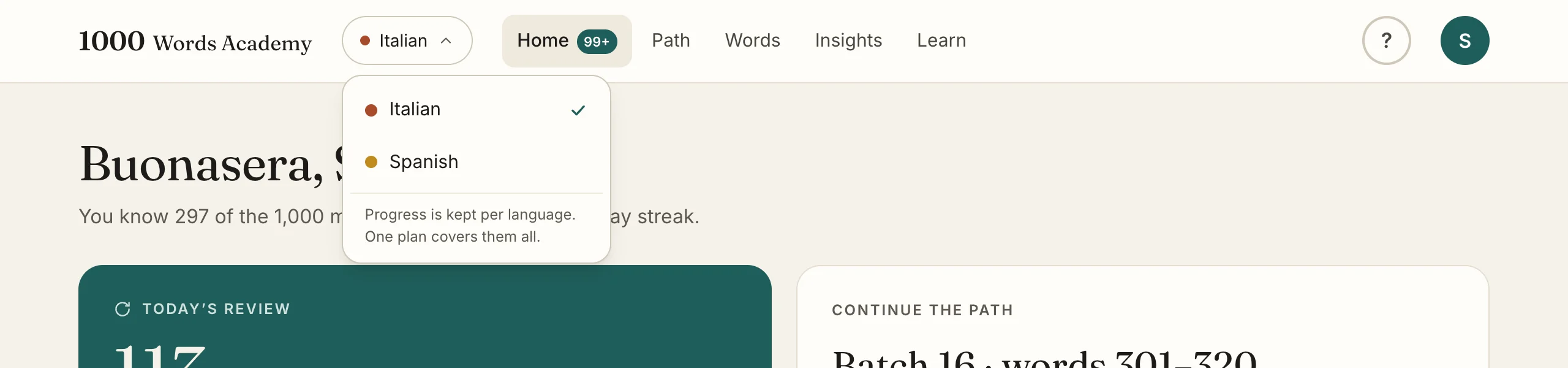
- The language pill, at the top of every page. Tap it to open the menu.
- Choose the other language. The app reloads in that language.
- Each language keeps its own progress, so switching back loses nothing.
Find help any time
The ? button at the top of the app opens these guides. They’re also linked at the bottom of every public page.

- Help & guides.
Put it on your phone
The app works in any browser, but it’s best installed on your phone’s home screen, where your review is one tap away. See Install the app.