Help & guides
A study session
Set up a batch, answer the cards, and read what the app tells you after each one.
You learn new words in batches of 20. Open a batch from Home (Learn new words) or from the Path, choose how to practice it, and start.
Set up the session
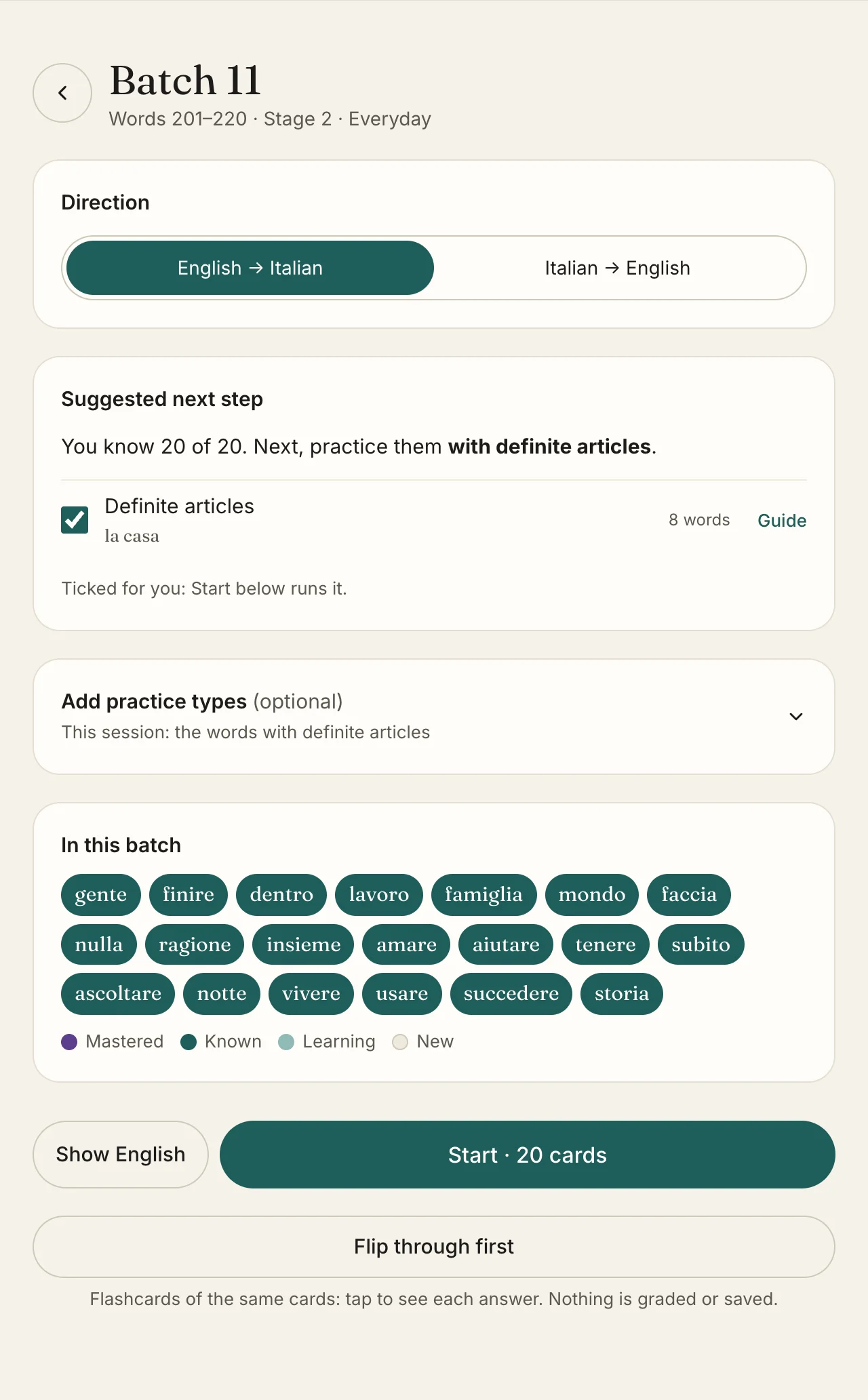
- Direction: type the word in Italian from the English (harder, and what makes a word known), or the other way round.
- Suggested next step: what to practice next, based on how well you know this batch. It’s already ticked, so Start runs it; if you change the ticks, Use this suggestion puts them back.
- Guide: a short grammar guide to that form, if you’d like the rule first.
- Add practice types: every form you can add to the session, all optional. The line underneath says what you’ll get.
- The 20 words in this batch, colored by step. Show English adds their English.
- Start, with whatever you’ve ticked. The button says how many cards the session has, and stays in reach as you scroll.
- Flip through first: the same cards as flashcards, to look them over before you’re asked. See Flip through.
When a batch is new, the suggestion is the words on their own. Once you know most of them, it moves on to their forms: plurals, articles, verb tenses, and finally each word in a sentence.
Flip through
Flip through first turns the session’s cards into flashcards: the same words, direction and forms you picked, with nothing to type. Use it to meet a new batch before you’re tested on it, or to look a batch over again.
- The card shows the prompt. Tap it, press Flip or press Space to see the answer, with the word’s kind and, for nouns, its gender.
- Next (or →, or a swipe) moves on; the arrow button (or ←) goes back.
- The speaker plays the word in Italian or Spanish. On an English card it appears once you flip, so it doesn’t give the answer away.
Practice the forms
Open Add practice types to choose any forms yourself. Only the ones that apply to the words in this batch are listed, grouped by kind of word, with an example and how many words have that form.
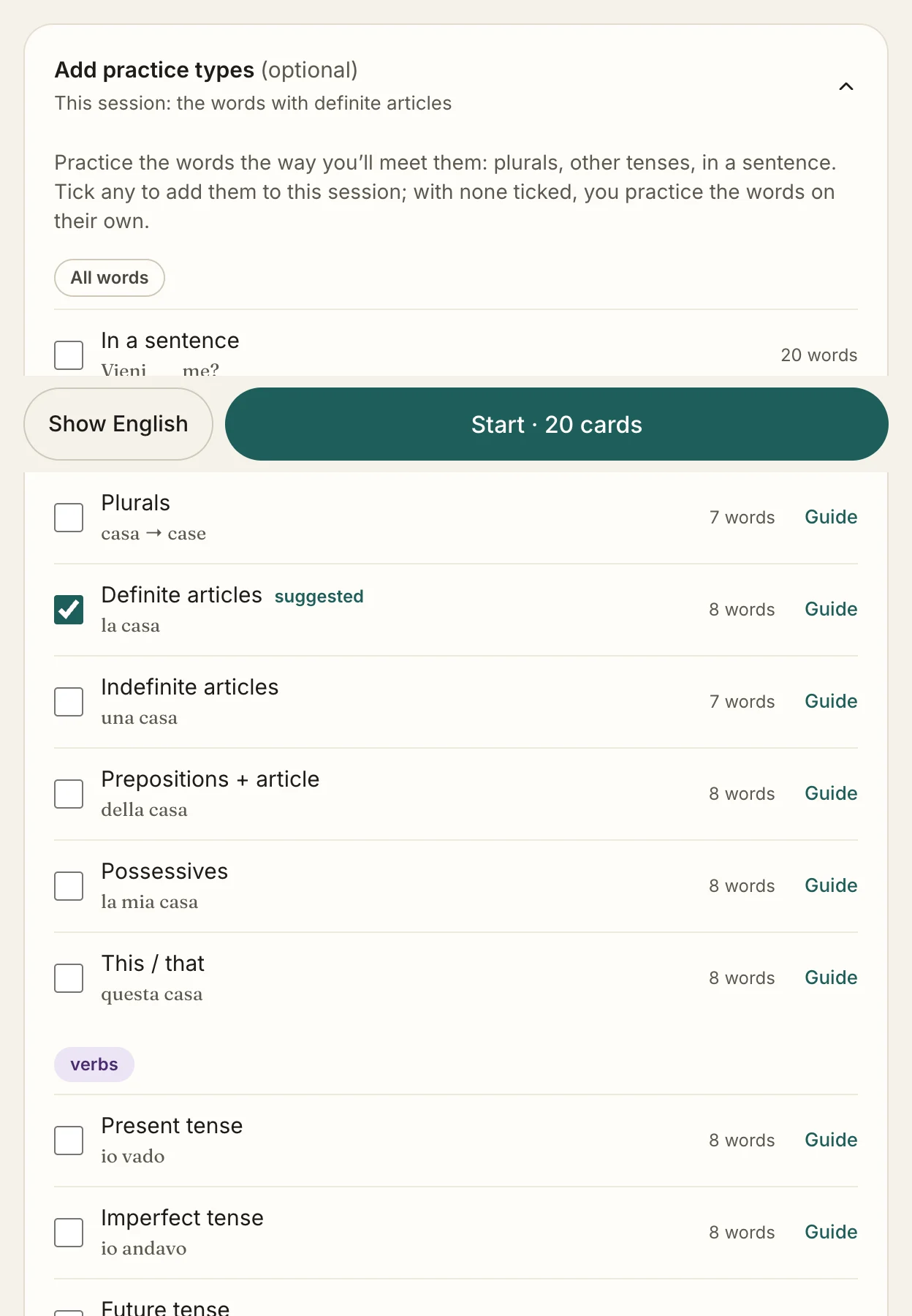
- In a sentence: fill the word into an everyday sentence. Every word has one.
- Noun forms, like Plurals and articles.
- Verb tenses. Each one adds that tense’s forms of the batch’s verbs.
Leave everything off to practice the words on their own. The app remembers whether you keep this section open.
Answer a card
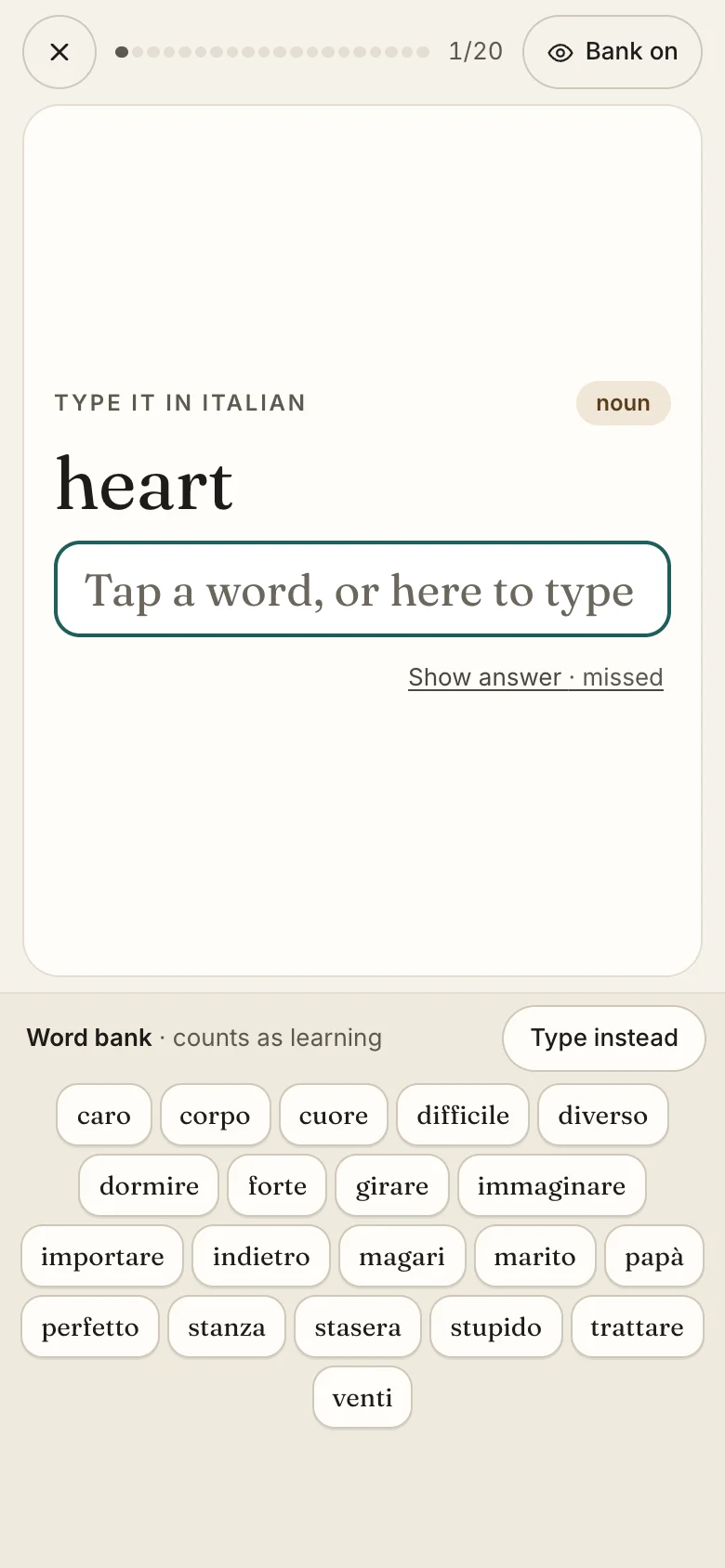
- Your progress through the session: one segment per card, colored as you answer.
- The prompt. The pill on the right says what kind of word it is.
- Bank on / Bank off switches the word bank. Only answers with the bank off make a word known.
- The word bank: the session’s answers, where the keyboard would be. Tap a word to answer with it.
- Type instead (or tap the answer box) turns the bank off and brings up the keyboard, to answer from memory.
- Don’t know it? Show answer shows it and counts the card as missed.
That’s a phone: the whole session fits on the screen, and the card moves up to sit just above the keyboard. On a computer the bank sits under the card: type your answer and press Check or Enter, typing narrows the bank, and Hide word bank turns it off.
The word bank has its own guide: how to use it, and when to hide it.
After each answer
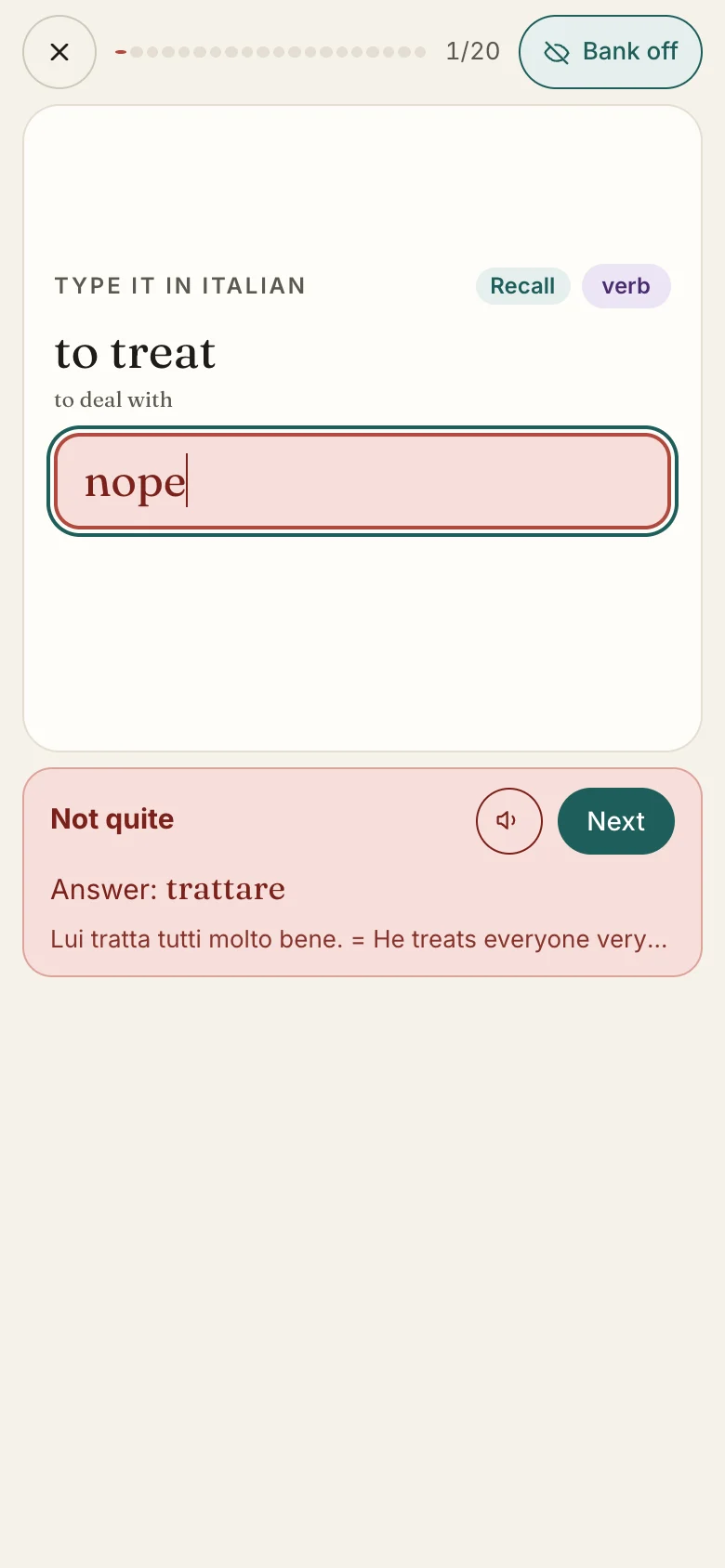
- Correct, Almost (only an accent is wrong or missing), or Not quite. The speaker button plays the word.
- The right answer, with an example or a note when there is one. Nouns show their gender here: m or f.
- Next, or press Enter. After a right answer the app moves on by itself.
A missed word isn’t a failure: it’s the app finding out what to bring back sooner. Every answer is saved as you go.
Typing accents
With the word bank off, a row of accented letters (à è é ì ò ù for Italian, á é í ó ú ñ ü for Spanish) sits under the answer box, just above the keyboard on a phone: tap one to add it. You can also type accents with your keyboard: see Troubleshooting.
A missing or wrong accent counts as Almost: right, but the word will come back a little sooner.
The end of the session
At the end you’ll see your score, how many answers were from memory (bank hidden), and every card with its result. Tap any word to open its page. Study again runs the same session once more.
To leave early, use the × at the top left. Answers you’ve already given are kept.